What Is a Personal GPS Heatmap?
Every Route You Recorded, Added Up
A personal heatmap puts all your GPS activities on one map and adds them up. A street you ran once is a thin, faint line. A path you ride every week glows bright. The picture shows your home turf, your favourite loops and the places you only visited once.
A Free Alternative to Paid Heatmaps
Strava shows personal heatmaps to its subscribers. This tool builds one from your own exported files, for free and without an account, and it works with files from any watch, bike computer or app, not only one platform.
Private by Design
A heatmap shows where you live, work and train. This tool reads your files and draws the map inside your browser; nothing is uploaded to Maplity or anywhere else. Close the page and the routes are gone.
How to Download All Your Activities
The heatmap is best with all your activities. These are the ways to get them in one go.
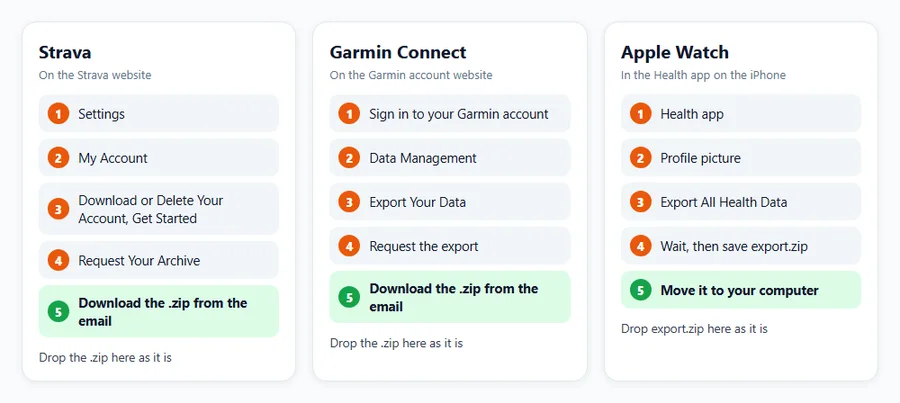
Strava: Request Your Archive
- On the Strava website, open Settings, then My Account.
- Under Download or Delete Your Account, press Get Started.
- Press Request Your Archive. Strava emails a download link, usually within a few hours.
- Download the .zip and drop it here as it is. The tool reads the
activitiesfolder (.gpx, .fit.gz, .tcx.gz) and takes the sport of each activity fromactivities.csv.
Garmin Connect: Export Your Data
- Sign in to your Garmin account on the Garmin website and open Data Management.
- Choose Export Your Data and request the export. Garmin emails a link when it is ready.
- Download the .zip and drop it here. The activities are .fit files inside another .zip in the export; the tool opens that inner .zip too.
For a few activities, open each one on Garmin Connect, press the gear icon and choose Export Original.
Apple Watch and iPhone: Export All Health Data
- On the iPhone, open the Health app and tap your profile picture.
- Tap Export All Health Data and wait; a large history can take several minutes.
- Save
export.zipand move it to your computer, for example with AirDrop or iCloud Drive. - Drop it here. The tool reads only the workout routes (the GPX files in
workout-routes); the rest of your health data is ignored.
Komoot, Wahoo, Coros, Polar, Suunto and Others
Most apps let you download a single activity or tour as GPX or FIT, and many offer a full data download in the account settings. Collect the files in one folder, select them all in the file dialog, and open them together. Files from different apps mix without problems.
Your Everyday Movements Instead?
This tool is for recorded activities. For everything your phone logged, including drives and trips, use the Timeline Viewer for Google Maps; it has its own heatmap.
How to Use the Personal GPS Heatmap
Open Files or a Whole Export
Press Open activity files and select as many files as you like, or drop them, or the export .zip, on the map. The progress bar counts the files. Press Add more files to add another export to the same map. To try it first, press the sample, a made-up year of runs and rides around London laid out like a Strava archive.
Style, Colour, Brightness and Width
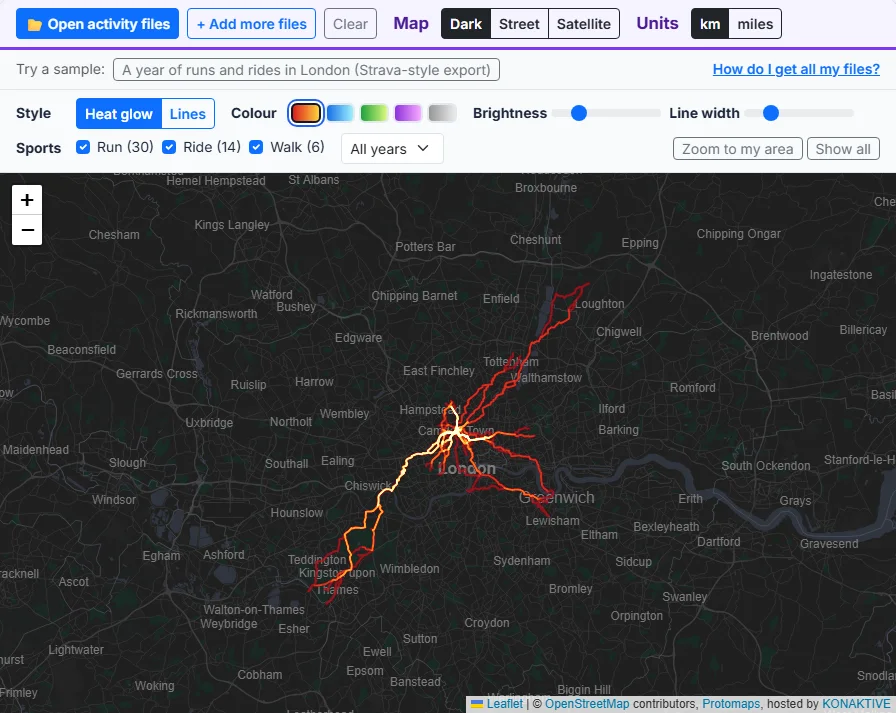
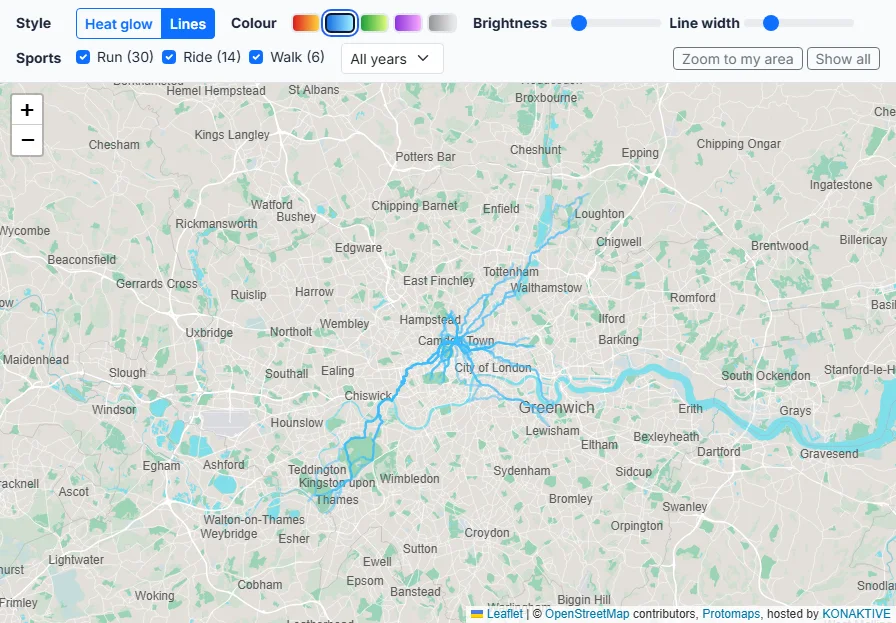
Heat glow adds the routes up so busy streets shine, and Lines draws every route as a plain line. Choose one of five colours (Fire, Ice, Lime, Violet or White). Brightness sets how quickly a street gets bright, and Line width how thick the lines are. The dark map makes the glow stand out; the street and satellite maps show where you are.
Sports, Years and Zoom
Tick the sports you want to see; the number next to each sport counts its activities. Choose one year or all years. Zoom to my area zooms to where most of your activities start, and Show all zooms out to every activity, including races and holidays far away.
Your Totals
The cards show the number of activities, the total distance, the longest activity, the years covered and the number of files read. The tables split the totals by sport, with the average distance, and by year.
How to Make a Heatmap of All Your Activities: Step by Step
Request your archive from Strava or your data export from Garmin, export Apple Health on your iPhone, or collect GPX, FIT and TCX files from any app. The guide below shows each way.
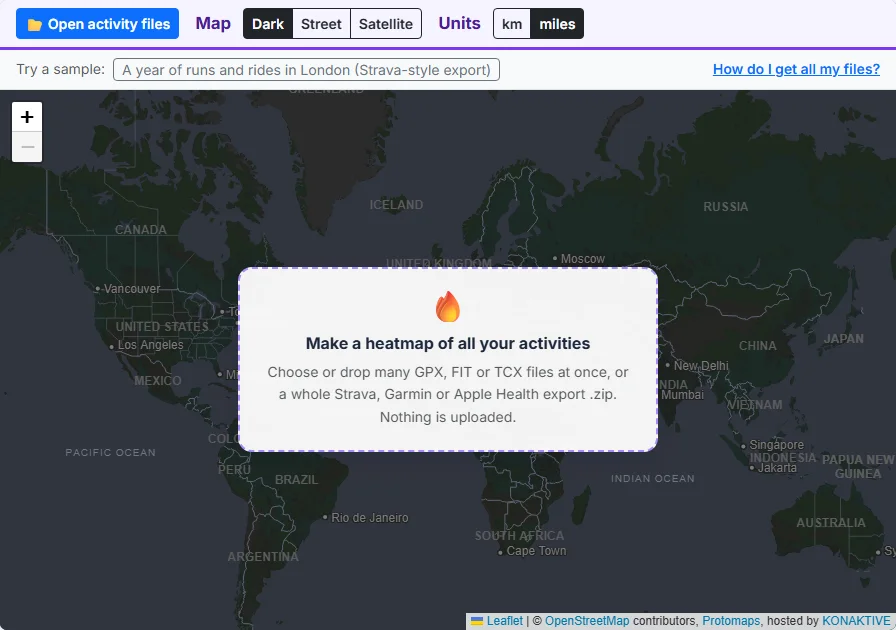
Press Open activity files and select many files, or drop the whole export .zip on the map. The tool reads every activity and skips indoor ones without GPS.
Every route glows on a dark map: the more often you passed a street, the brighter it gets. Zoom in on your neighbourhood or out to see every city you visited.
Switch between Heat glow and Lines, pick one of five colours, and set the brightness and the line width. Try the street or satellite map under it.
Tick only runs, only rides or any mix, and choose one year. The totals show the activities, the distance and the longest one, by sport and by year.
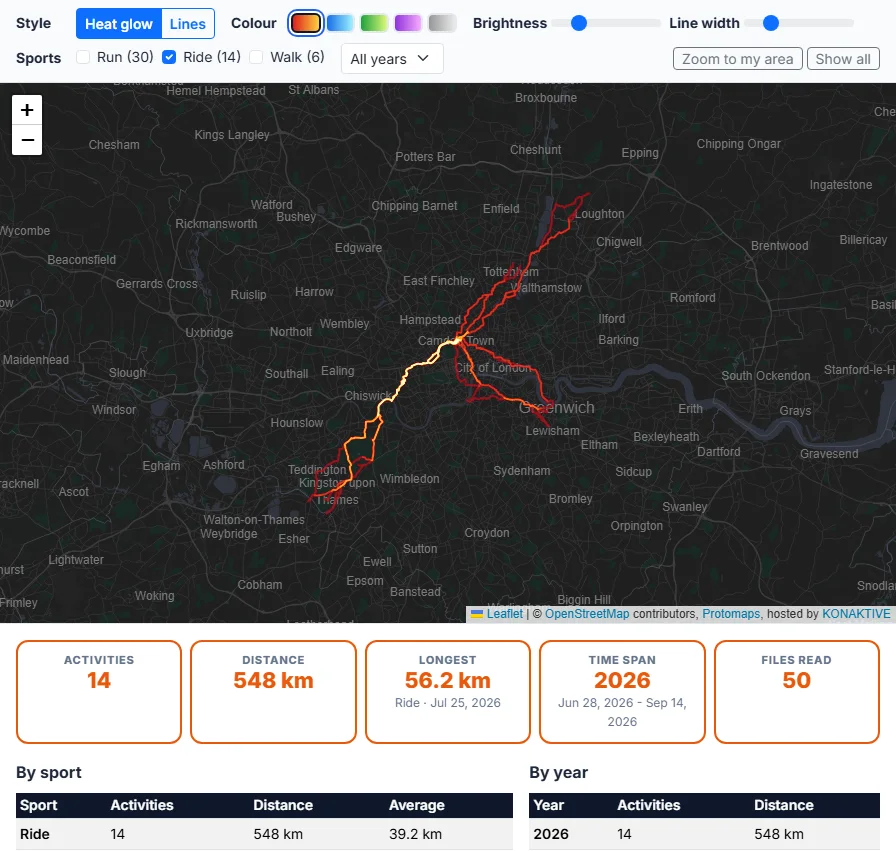
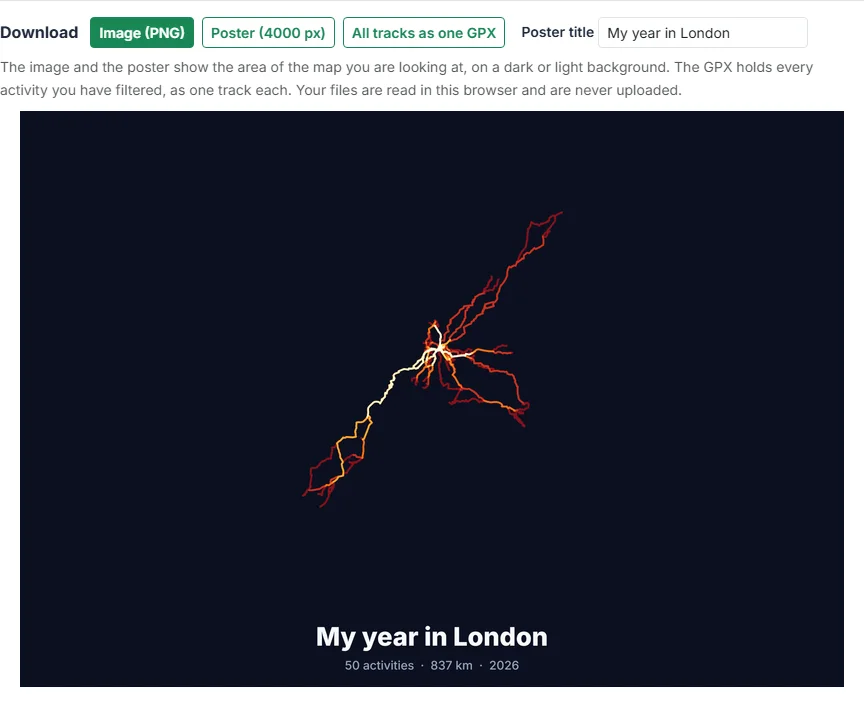
Download the view as an image, as a 4000 pixel poster with your own title, or all filtered tracks merged into one GPX file.
Heatmap Images, Posters and Sharing
Image of the Current View
Image (PNG) saves what you see on the map at twice the screen resolution, with your routes on a dark background (or a light one when the street map is on). The map tiles are not in the image, so it is clean and free to share.
A 4000 Pixel Poster With Your Title
Type a title such as “My runs in London” and press Poster. The PNG is 4000 pixels wide, enough for a sharp print up to about A3 size, and shows your title with the number of activities, the total distance and the years under the map.
Merge GPX Files and View Many GPX Files on One Map
Merge Many Activities Into One GPX
All tracks as one GPX writes every filtered activity into one GPX file, one track per activity with its name, date and sport. It is an easy way to combine a whole Strava or Garmin export, or only your runs of one year, into a single file for Google Earth, QGIS or the GPX Viewer.
Many GPX Files at Once
To simply see many GPX files together, open them all and choose the Lines style. For one activity in depth, with pace, heart rate and laps, use the FIT / TCX File Viewer.
8 Ideas for Your Personal Heatmap
1. See how much of your city you have covered
Runners and cyclists love to see which streets they have never been on. The bright lines show your usual routes, the dark gaps show where to go next.
2. Every street challenges
If you try to run every street of your town, the Lines style on the street map shows what is done and what is left.
3. Your year in review
Choose one year to see your season: where you trained, the long rides and the trips away. Download it as an image to share.
4. A poster or gift
A glowing map of thousands of kilometres makes a great poster for a wall, or a gift for a runner or cyclist. Add a title and print the 4000 pixel PNG.
5. Plan new routes
Look for parks, paths and roads near the bright areas that you have not used yet, then plan a new loop in your route app.
6. Compare your sports
Show only rides, then only runs: the two maps usually look very different, with rides reaching far out of town.
7. A map of your sporting travels
Zoom out with all years selected: every race, holiday run and ride abroad shows up as a bright spot on the world map.
8. Check a big export
Before you leave a platform, open its full export here to check that all your activities are inside, then keep the merged GPX as a backup.
When Something Looks Wrong
Activities Are Missing
Indoor activities have no GPS and are skipped; the Files read card counts them. If a whole export seems empty, check that you dropped the complete .zip and not only a single file from it.
The Sport Is Wrong or Other
GPX files often do not say the sport. In a Strava archive the tool takes it from activities.csv; from other sources, activities without a sport go under Other. Untick Other if it holds things you do not want on the map.
Straight Lines Across the Map
A GPS that lost its signal can jump. The tool drops jumps over 2 km between two points, so long straight lines are rare; short ones can stay where a watch lost the signal in a tunnel or between tall buildings.
How This Heatmap Works: Data and Libraries
Reading the Files
Maplity wrote its own readers: FIT with the same reader as the FIT / TCX File Viewer, and GPX and TCX with fast text matching, so hundreds of files open quickly. Archives are opened with JSZip and .gz files with the browser’s own DecompressionStream. Each route keeps one point about every 5 metres.
Drawing the Glow
The routes are drawn on a canvas with additive blending: each line adds a little light, and the total is coloured with the chosen ramp. The map is drawn again after each move or zoom, so lines stay sharp at every scale.
Maps and the Sample
The dark and street maps are Maplity’s own vector basemap from OpenStreetMap data in a dark and a light style, the satellite map is Esri World Imagery, and the maps use Leaflet 1.9. The sample follows real roads and paths from OpenStreetMap (routed with OSRM), with made-up dates; it is not anyone’s real training.