What Is the FIT File Viewer?
What Is a FIT File?
A FIT file is the activity file of a GPS watch or bike computer. FIT stands for Flexible and Interoperable Data Transfer, a format made by Garmin. Today Garmin, Wahoo, Coros, Suunto, Polar, Hammerhead, Bryton, Zwift and many other brands use it. Each run, ride, walk or swim becomes one .fit file with the GPS track, the time, the height, the heart rate, cadence, power, temperature, laps and a summary.
What Is a TCX File?
TCX (Training Center XML) is an older Garmin format. It is a text file, so you can open it in a text editor, but it is hard to read there. It holds the track, heart rate, cadence, power and laps. Garmin Connect and many apps still export it.
What This Viewer Shows
The viewer draws the track on a street, satellite or terrain map and colours it by pace, speed, heart rate, elevation, cadence or power. Below the map you get the summary, charts linked to the map, the time in each heart rate zone, the laps of your device and splits per km or mile. Two buttons convert the activity to GPX or CSV.
Private: the File Stays on Your Device
The file is read by JavaScript in your browser. It is not sent to Maplity or to anyone else, and the GPX and CSV files are made in the browser too. So you can open private activities, and the viewer still works when the connection is slow. Only the map tiles come from the internet.
How to Open and Read a FIT or TCX File
Open a File
Press Open FIT or TCX file or drop the file on the map. The viewer reads .fit and .tcx files, the .fit.gz and .tcx.gz files of a Strava archive, and the .zip files of Garmin Connect’s Export Original. To try it first, press Run in Central Park (FIT) or Mont Ventoux ride (TCX).
Read the Map
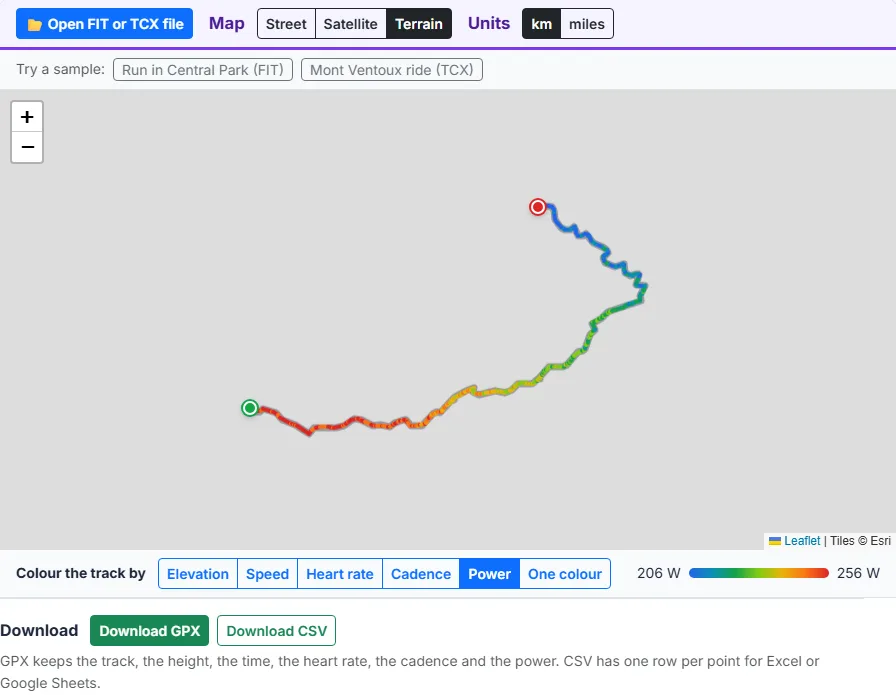
Green marks the start and red marks the finish. The colour of the track goes from blue (low) to red (high). For pace, red means fast. The legend next to the colour buttons gives the values at both ends. Satellite and Terrain change the map under the track.
Read the Numbers
The cards show only the data your file has. Runs, walks and hikes show pace (minutes per km or mile); rides show speed. Choose km or miles at the top, and the browser remembers your choice.
Use the Charts
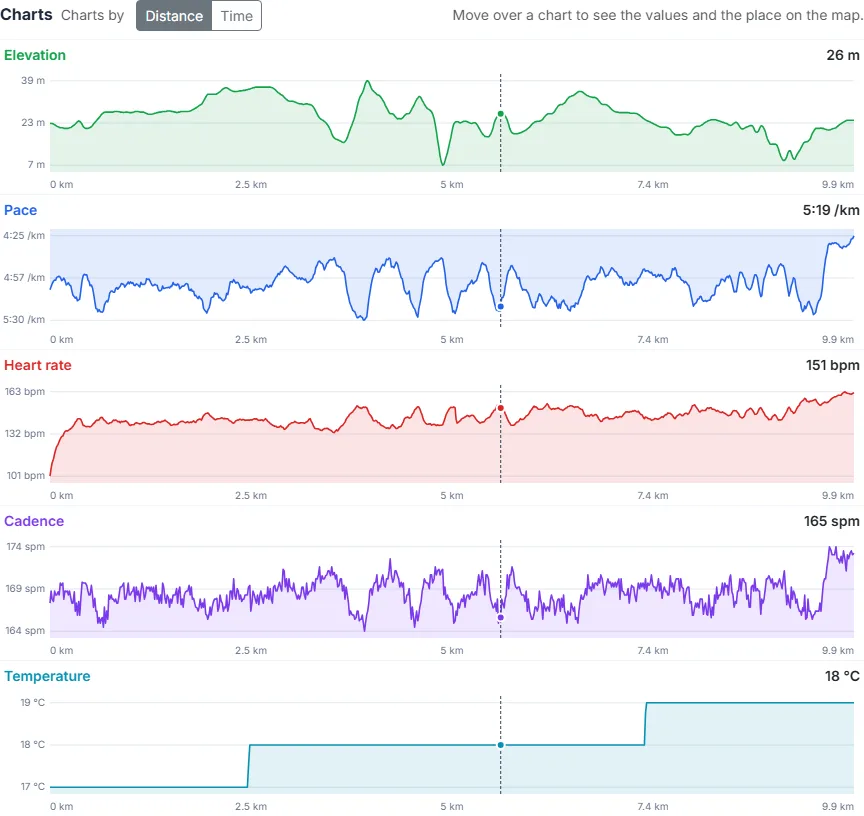
Each chart shows one kind of data along the activity, by distance or by time. Move the mouse over a chart, or touch it on a phone: the value appears at the top right and an orange dot shows the place on the map. It also works the other way: move over the track on the map and the charts show that point.
Heart Rate Zones, Laps and Splits
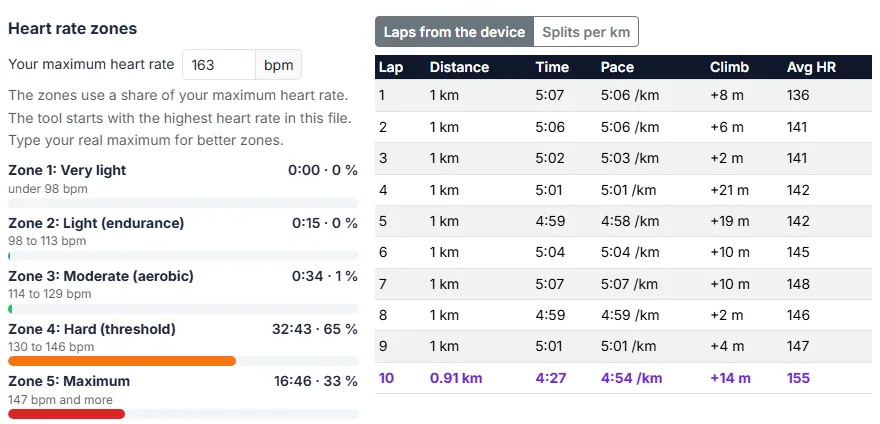
Type your maximum heart rate to see the time in each zone. The table shows the laps your device recorded (lap button or auto lap) and splits of 1 km or 1 mile made from the track. The fastest lap or split is in purple.
How to Use the FIT File Viewer: Step by Step
Press Open FIT or TCX file, or drop the file on the map. .fit, .tcx, .fit.gz, .tcx.gz and the .zip files of Garmin Connect all work. To try the tool first, press one of the two samples.
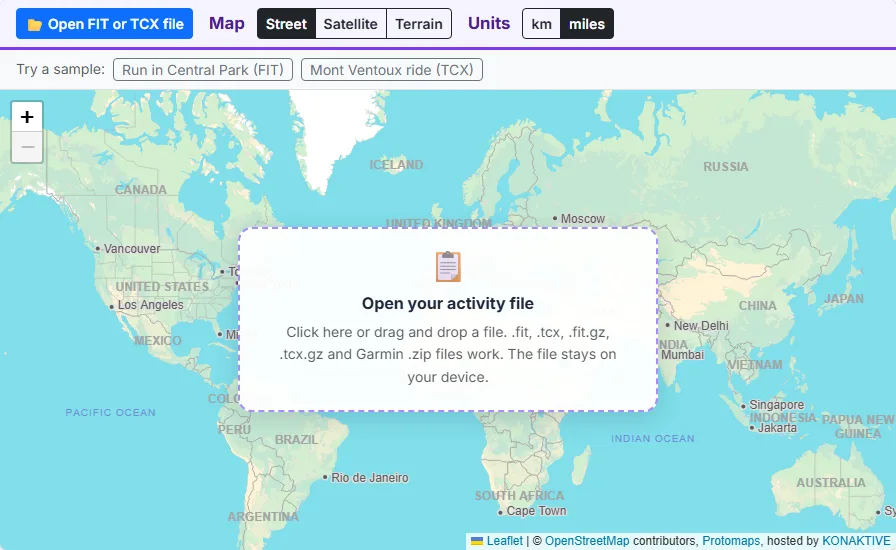
The track appears on the map, coloured by pace or speed. Green is the start and red is the finish. Switch to the satellite or terrain map, or colour the track by heart rate, elevation, cadence or power.

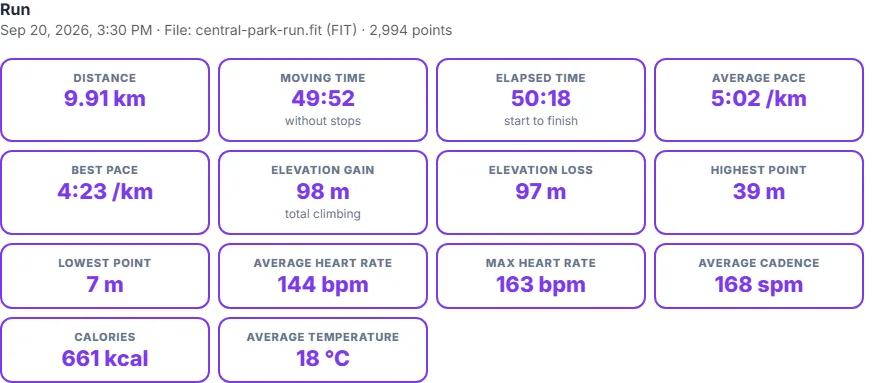
The cards show the distance, moving and elapsed time, pace or speed, elevation gain, heart rate, cadence, power and calories. Choose km or miles at the top.
The charts show elevation, pace or speed, heart rate, cadence and power by distance or by time. Move over a chart and an orange dot shows the place on the map. Move over the track on the map and the charts follow.
Type your maximum heart rate to see the time in each of the five zones. The table shows the laps of your device or splits per km or mile, with the fastest one in purple.
Download GPX to use the track in other apps and maps, or CSV to open every point in Excel or Google Sheets. Both are made in your browser.
Where to Get Your FIT or TCX File
Every platform keeps the original file of your activity. These are the usual ways to get it.
Garmin Connect
Open the activity on the Garmin Connect website, press the gear icon and choose Export Original. You get a .zip file with the .fit file inside; open the .zip here as it is. The same menu has Export to TCX and Export to GPX.
A Garmin watch or bike computer by cable
Connect the device to a computer with its USB cable. The activities are .fit files in the folder GARMIN, Activity. Copy the file you need, or open it from there.
Strava
On the Strava website, open the activity, press the three dots menu and choose Export Original or Export GPX. For all your activities, request your archive under Settings, My Account. The archive has .fit.gz and .tcx.gz files, which this viewer opens without unpacking.
Zwift
Zwift saves every activity as a .fit file in Documents, Zwift, Activities on your computer.
Wahoo, Coros, Suunto, Polar and others
These devices save FIT files too. Their apps can export or share the file of an activity, or send it to Strava, where Export Original gives you the FIT file back.
Apple Watch and phone apps
Apple Health does not make FIT files. Apps such as HealthFit can export a workout as a FIT file, and many running apps can export TCX or GPX.
FIT vs TCX vs GPX: What Is the Difference?
The Three Activity Formats Side by Side
| FIT | TCX | GPX | |
|---|---|---|---|
| Made by | Garmin (FIT SDK), used by most sport brands | Garmin, for Training Center | TopoGrafix, open standard |
| File type | Binary, very small | Text (XML), large | Text (XML), medium |
| Heart rate, cadence | Yes | Yes | Only in extensions |
| Power, temperature | Yes | Power only, in extensions | Only in extensions |
| Laps and summary | Yes, with calories and device details | Yes, with calories | No |
| Read by map apps | Sport apps only | Sport apps only | Almost every map and GPS app |
Which Format Should You Use?
Keep the FIT file as your original: it has the most data and is the smallest. Use GPX to share a route or to open it in map apps, for example the GPX Viewer. TCX is useful for older programs that do not read FIT.
Understanding Your Activity Data
Moving Time and Elapsed Time
Elapsed time is the clock time from start to finish. Moving time leaves out stops: points where you were slower than 0.5 m/s (1.8 km/h) and gaps of more than 30 seconds when the device was paused. Average pace and speed use the moving time, like Strava.
Elevation Gain
The climb is the sum of all the ups in the heights of the file. Changes smaller than 2 m are ignored, so the noise of GPS heights on flat ground does not add up. Watches with a barometer give the best heights. Garmin Connect and Strava can replace the heights with their own elevation maps, so their numbers can be a little different.
Pace and Speed
Pace is the time for one km or mile, and it is the usual number for running and walking. Speed is km/h or mph, and it is used for cycling. The best pace and top speed come from a short moving average, so a single GPS jump does not give a false record.
Cadence: Steps or Pedal Turns
Running cadence is in steps per minute (spm). The file stores one foot, so the viewer doubles it, like Garmin Connect: 85 in the file is 170 spm. Bike cadence is pedal turns per minute (rpm) and is shown as it is.
Power and Normalized Power
Power in watts comes from a power meter, a smart trainer or a running power pod. Normalized power uses the 30 second average of your power and weighs hard efforts more, so it shows how hard a ride with attacks or hills really was.
Heart Rate Zones
The five zones are shares of your maximum heart rate: zone 1 is under 60 %, zone 2 is 60 to 70 % (easy endurance), zone 3 is 70 to 80 %, zone 4 is 80 to 90 % (threshold) and zone 5 is above 90 %. If you do not know your maximum heart rate, the highest value in a hard race or test is a good start.
Convert FIT and TCX to GPX or CSV
FIT to GPX and TCX to GPX
Open the file and press Download GPX. The GPX file has every GPS point with its height and time. Heart rate, cadence and temperature go into the Garmin TrackPointExtension and power into a power tag, which Strava and most training apps read.
FIT to CSV for Excel
Download CSV gives one row per point with these columns: time in UTC, seconds from the start, latitude, longitude, height in metres, distance in metres, speed in m/s, heart rate, cadence, power and temperature. Open it in Excel, Google Sheets, Python or R.
8 Reasons to Open a FIT File in the Browser
1. Check your run without an app
See your splits per km or mile, your pace on each hill, and where your heart rate went up. This works for a file a friend sends you too.
2. Look at power on a climb
Colour the track by power and see where you pushed hardest. Average power, maximum power and normalized power are in the cards.
3. Coaches reviewing athlete files
Athletes can send a FIT file by email or chat. The coach opens it in the browser, with no account on the athlete's platform.
4. Indoor and trainer workouts
Zwift, treadmill and trainer files show heart rate, power and cadence charts and zones, even without a map.
5. Move activities to another app
Convert FIT or TCX to GPX for apps that only read GPX, such as many map and route planning apps, or to keep a copy of your activities.
6. Your own analysis in Excel
The CSV download has one row per point with time, position, height, distance, speed, heart rate, cadence, power and temperature.
7. Check a file before uploading
If Strava or another site refuses a file, open it here first. You can see if the track, the times and the data are there.
8. Look back at a race
Find the kilometre where you slowed down, compare the laps of a track session, or see how long you spent in zone 4 and 5.
When a File Does Not Open
The File Is Not an Activity
Garmin devices also save settings, workouts, sleep and health data as .fit files. These files have no track points, and the viewer says so. Choose a file from the Activity folder, or use Export Original on Garmin Connect or Strava.
A Damaged or Cut File
If the battery ran out during an activity, the file can be cut short. The viewer reads all the points up to the damaged part. A TCX file that was edited by hand must still be valid XML.
No Track on the Map
Indoor activities have no GPS positions: treadmill runs, trainer rides and pool swims. The viewer shows the numbers and charts without a map. Zwift files have positions in Zwift’s virtual worlds, so the track appears in the place where Zwift puts that world.
Data Sources and Libraries Used in This Tool
Reading the Files
Maplity wrote its own FIT reader, which follows the FIT protocol of the Garmin FIT SDK, and a TCX reader that uses the XML parser of the browser. .gz files are unpacked with the browser’s own DecompressionStream and .zip files with JSZip. All the numbers are worked out in your browser.
Maps
The street map is Maplity’s own vector basemap built from OpenStreetMap data. The satellite map is Esri World Imagery and the terrain map is Esri World Topo Map. The maps use Leaflet 1.9, and the page runs on Next.js and React.
The Sample Files
The two samples follow real roads from OpenStreetMap (routed with OSRM) with heights from the AWS Terrain Tiles. The speed, heart rate, cadence and power in them are made up for the demo, so they are not a real athlete’s data.