What Is Google Timeline, and Why Can't I See It on My Computer?
Google Maps Timeline in Short
Google Maps Timeline (earlier called Location History) is the diary of places that your phone keeps when Timeline is on. It saves the places you visit with the time you arrived and left, the trips between them with the travel mode (walking, driving, train, flight and more), and the location points along the way.
Timeline Moved From the Web to Your Phone
Google moved Timeline from its servers to each phone. Since then, the Timeline page of Google Maps on a computer no longer shows your history, and Google Takeout no longer includes it for moved accounts. Your Timeline is now on the phone itself, with an optional encrypted backup. To look at it on a computer, you export a file from the phone and open it in a viewer such as this one.
What This Viewer Shows
The viewer reads the export of Android (Timeline.json) and iPhone (location-history.json), and the old Takeout files (Records.json and the monthly Semantic Location History files). It shows any day with its places and trips, a heatmap of any month, year or all time, the distance by travel mode, the countries with the number of days, the most visited places and a calendar of the days with data. It also converts your history to GPX, KML, GeoJSON and CSV.
Your Location History Stays on Your Device
Location history is private. This viewer reads the file with JavaScript in your browser; the file is not sent to Maplity or to anyone else, and the downloads are made in the browser too. Only when you press Find address are the coordinates of that one place sent to the Maplity address search, to get a street address. Close the page and nothing is left behind.
How to Export Your Google Timeline File
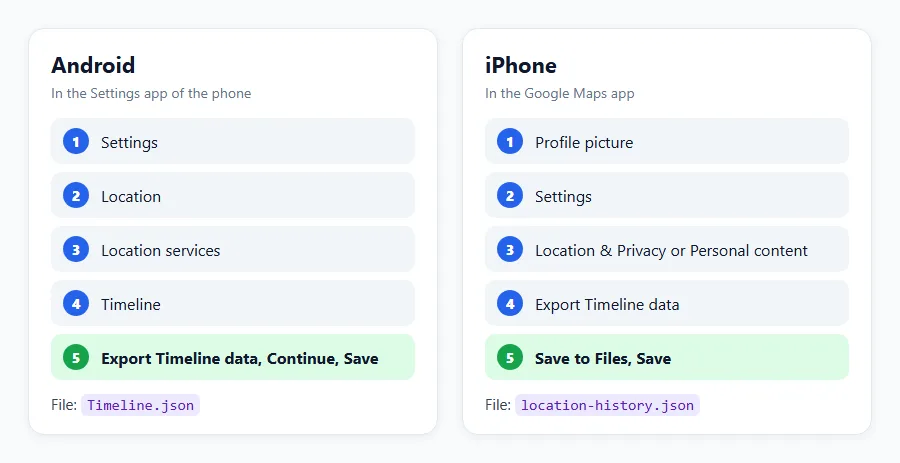
Choose your phone. Menus can look a little different between phone brands and app versions, but the names below are the ones Google uses.
Android: Export Timeline Data From the Settings App
- Open the Settings app of your phone (not Google Maps).
- Tap Location, then Location services, then Timeline. If you cannot find it, type “Timeline” in the search box at the top of Settings.
- Tap Export Timeline data, then Continue.
- Choose where to save the file, for example Downloads or Google Drive, and tap Save.
- Wait for the message Export complete. The file is usually called
Timeline.json.
iPhone and iPad: Export Timeline Data in Google Maps
- Open the Google Maps app.
- Tap your profile picture (or initial) at the top right, then Settings.
- Tap Export Timeline data. Depending on the app version, it is under Location & Privacy or under Personal content.
- In the share sheet, tap Save to Files, choose a place such as iCloud Drive or On My iPhone, and tap Save.
- The file is called
location-history.json.
Old Google Takeout Archives
Before the move to the phone, Google Takeout (takeout.google.com) gave a .zip with a folder for Location History. If you still have such an archive, open the .zip here as it is, or open its Records.json and the monthly files in the Semantic Location History folder. These files often go back many years, so keep them: for accounts that moved Timeline to the phone, Takeout does not export them again.
If Timeline Is Off or Empty
The export only has data if Timeline was on. In Google Maps, open Your Timeline, then More, then Location & privacy settings, and check that Location and Timeline are on. On iPhone, Location Services for Google Maps must be set to Always. Timeline is not available on Android Go phones.
Which File Do You Have?
| File | Comes from | What is inside | Where to get it |
|---|---|---|---|
| Timeline.json | Android phone export | Places, trips with travel mode and distance, paths with times, raw location points, home and work | Settings, Location, Location services, Timeline, Export Timeline data |
| location-history.json | iPhone phone export | Places, trips with travel mode and distance, paths (times as minutes from the start of each part) | Google Maps, profile picture, Settings, Location & Privacy, Export Timeline data |
| Records.json | Old Google Takeout | Every raw location point with accuracy, often many years | An old Takeout archive (no longer exported for moved accounts) |
| Semantic Location History | Old Google Takeout | One file per month with place visits (with names and addresses) and trips | An old Takeout archive, folder Semantic Location History |
| Takeout .zip | Old Google Takeout | Records.json and the monthly files together | Open the .zip as it is, no need to unpack |
How to Move the Timeline File to Your PC or Mac
You can also open this page on the phone itself. For a bigger screen, move the file to a computer in one of these ways.
Android to PC With a USB Cable
Connect the phone to the computer with its cable. On the phone, tap the USB notification and choose File transfer. On the computer, open the phone in File Explorer, go to the folder where you saved the export, for example Download, and copy Timeline.json to the computer. On a Mac, Google Drive (below) is usually easier.
Through Google Drive (Android and iPhone)
Save the export to Google Drive (on Android, choose Drive in the save dialog; on iPhone, choose the Drive app in the share sheet). On the computer, open drive.google.com and download the file. Drive is the easiest way for big files.
iPhone to Mac or Windows
Save the file to iCloud Drive in Save to Files, then open it on a Mac in Finder or on any computer at icloud.com. With a Mac nearby, AirDrop is the fastest way: share the file from the Files app and choose the Mac.
Email or Chat
A small export can be sent to yourself by email. Many mail services limit attachments to about 20 to 25 MB, and Timeline files are often bigger, so use Drive, iCloud or a cable for those.
How to Use the Timeline Viewer for Google Maps
Open One File or Several
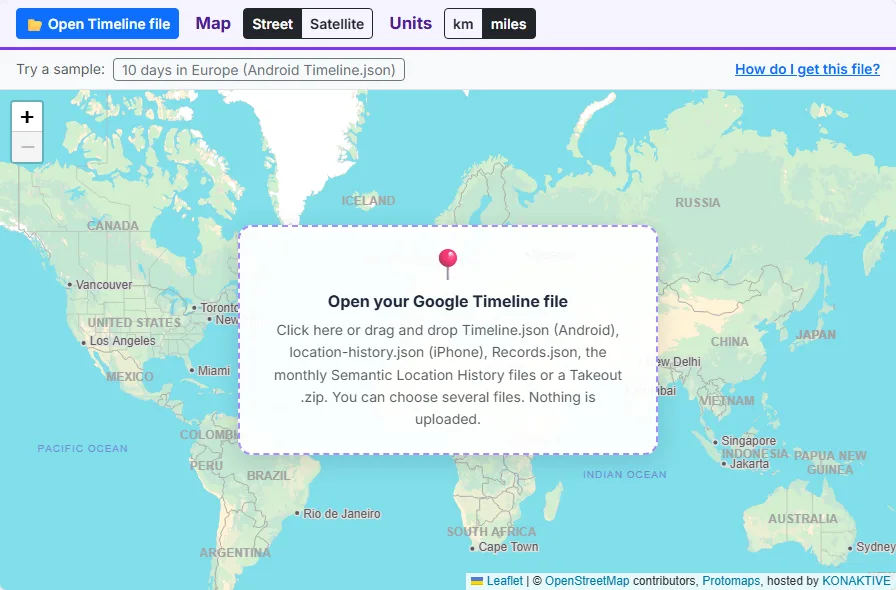
Press Open Timeline file or drop the file on the map. You can select several files at once, for example an old Takeout Records.json and a new Timeline.json, or all the monthly files of a year: the viewer merges them. To try it first, press 10 days in Europe, a made-up trip in the Android format.
Day, Month, Year, All or Your Own Range
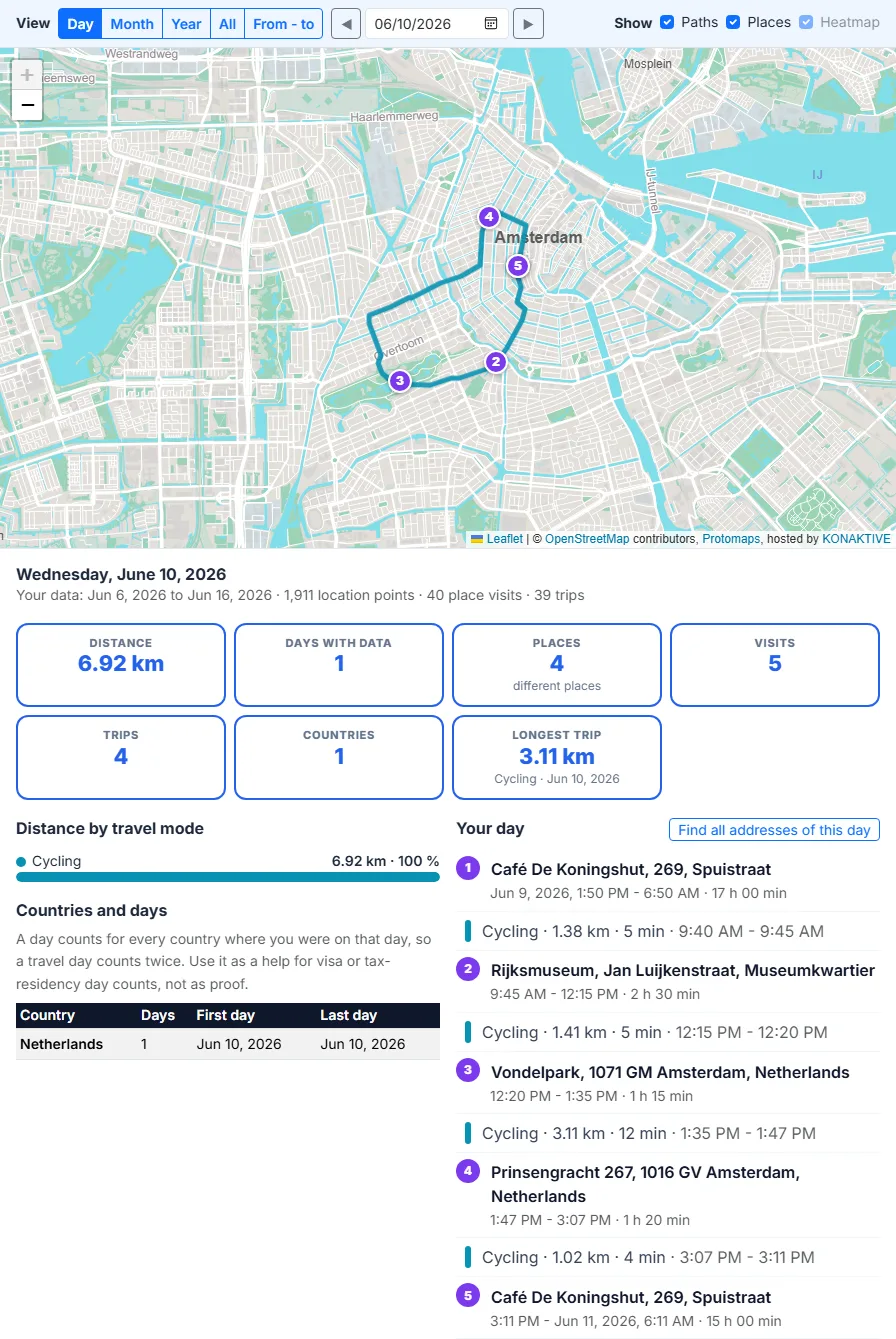
Day shows one date: the arrows jump to the previous or next day with data. Month and Year step through your history, All shows everything, and From - to takes any two dates, for example a holiday or a tax year.
Paths, Places and the Heatmap
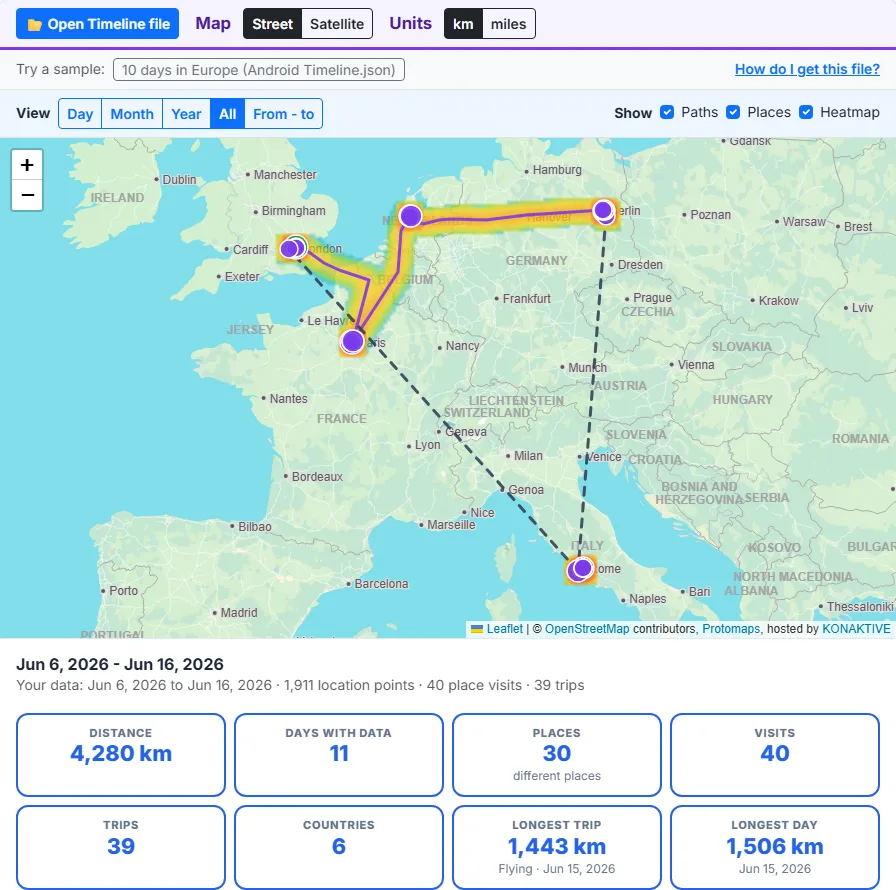
Paths are your trips, coloured by travel mode, with flights as dashed lines. They show for ranges up to two months. Places are numbered in time order on a day, and sized by the number of visits on longer ranges. The Heatmap shows where you spent the most time, from blue (rarely) to red (often).
The Day List and Addresses
On a day, the list on the right gives each place and trip with its times, duration, travel mode and distance. Click a line to zoom the map to it. The new phone exports do not store place names, so press Find address to look up the street address of a place.
Numbers, Countries and the Calendar
The cards give the distance, the days with data, the places, the visits, the trips, the countries, the longest trip and the longest day. Below them are the distance by travel mode, the countries with their number of days, the most visited places and a calendar of the year: darker days have more distance, and a click opens the day.
How to View Your Google Timeline on a Computer: Step by Step
Android: Settings, Location, Location services, Timeline, Export Timeline data. iPhone: Google Maps, your profile picture, Settings, Location & Privacy, Export Timeline data. The guide below shows each step.
Move the file to your computer, or stay on the phone. Press Open Timeline file or drop the file on the map. Timeline.json, location-history.json, Records.json, monthly Takeout files and Takeout .zip files all work.
The first view shows all your data: a heatmap, your most visited places and, for short ranges, the paths coloured by travel mode. The cards give distance, days, places, trips and countries.
Choose Day and pick a date, use the arrows to jump to the next day with data, or click a day in the calendar. The day list shows each place and trip in time order. Find address names a place.
Choose Month, Year, All or your own date range. The tool shows the distance by travel mode, the countries with the number of days in each, and your most visited places.

Download the range you are viewing: GPX for GPS apps, KML for Google Earth, GeoJSON for GIS, and CSV for Excel, with one file for trips and visits and one for the location points.

Where Was I on a Specific Date?
Find a Date in Seconds
Choose Day and type the date, or click the date in the calendar. If that day has no data, the arrows jump to the nearest day that has some. The map and the list show each place with the time you arrived and left, and each trip with its start and end.
How Exact Is Timeline?
Timeline guesses places and travel modes from GPS, Wi-Fi and mobile network signals. In cities it is usually right to a building or a street; in the countryside, indoors or with the battery saver on, it can be off by hundreds of metres or miss a short stop. Treat it as a strong hint, and check important dates with other records such as tickets or receipts.
Countries Visited and Days per Country
How Many Countries Have You Visited?
With All, the table lists every country in your history with the number of days, the first day and the last day. A country counts when a place, a trip start or end, or a location point (one every 15 minutes) lies inside it. Flights over a country do not count, because there are no points in the air.
Schengen 90/180 and Other Visa Day Counts
For the Schengen rule (at most 90 days in any 180-day period), choose From - to, set the 180 days you want to check and add up the days of the Schengen countries in the table. A day with travel counts for both countries, which matches how many border rules count entry and exit days. Always check the official rules and your passport stamps; the table is a help, not a proof.
Tax Residency and the 183-Day Test
Many countries treat you as a tax resident after 183 days in a tax year. Set the tax year as the range and read your days per country. Tax rules differ between countries and have exceptions, so take the numbers to your tax adviser as a starting point.
Convert Google Timeline to GPX, KML, GeoJSON or CSV
Google Timeline to GPX
GPX has your places as waypoints with name and time, and your location points as one track per day. GPS apps, fitness apps and most map apps read it; open it in the GPX Viewer too.
Google Timeline to KML for Google Earth
KML opens in Google Earth and Google My Maps. Places have their time span, so the time slider of Google Earth Pro can play your history, and trips are lines coloured by travel mode.
Google Timeline to CSV for Excel
CSV: trips and visits gives one row per place visit or trip, with start and end time, duration, travel mode, distance and coordinates. CSV: location points gives one row per point with UTC and local time, latitude, longitude and accuracy. Both open in Excel and Google Sheets.
Google Timeline to GeoJSON for GIS
GeoJSON holds places as points, trips as lines with mode and distance, and the location points, ready for QGIS, ArcGIS or web maps.
10 Reasons to Look Back at Your Location History
1. Where was I on that date?
Find a date for a receipt, a photo, a claim or a memory. Choose the day and see every place with the time you arrived and left.
2. Count the countries you have visited
The All view lists every country in your history with the number of days. Travellers use it for their country count and for travel maps.
3. Visa day counts
For the Schengen rule (90 days in any 180 days) or other visa limits, set a date range and read the days per country as a help for your own count.
4. Tax residency days
Many countries use a 183-day test for tax residency. Set the tax year and see how many days your history shows in each country.
5. Mileage logs for work
The CSV of trips gives date, times, travel mode and distance for each trip. Add the purpose of the business trips and you have the base of a mileage log.
6. Travel memories
Open a holiday as a date range: the route, the places, the train and flight legs and the total distance, ready to share as GPX or KML.
7. Walking and cycling totals
How far did you walk this year? The distance by travel mode shows walking, running and cycling separately for any month or year.
8. Keep a copy you can read
The phone export is the only copy of Timeline outside your phone. Opening it here checks that it is complete, and GPX, KML or CSV copies stay readable in other apps.
9. Data and research
GeoJSON and CSV exports open in QGIS, Excel, Python or R for your own analysis of where and how you travel.
10. A heatmap of your life
The heatmap of all your years makes a striking picture of the places that matter to you. Switch to the satellite map for a different look.
Keep Your Timeline Safe: Backup, Auto-Delete and New Phones
Turn On Timeline Backup
In Google Maps, open Your Timeline, tap the cloud icon and turn on Backup. Backup needs auto-delete to be off. The backup is encrypted and only works inside Google Maps; it is not a file you can open, so export a file too.
Move Timeline to a New Phone
On the new phone, open Your Timeline, tap the cloud icon, choose the old device under Your backups, then More and Import. Without a backup, the new phone starts with an empty Timeline.
Auto-Delete: 3, 18 or 36 Months
Under Location & privacy settings, Auto-delete Timeline removes data older than 3, 18 or 36 months, or keeps everything. If you want a long history, choose not to auto-delete, or export a file before the data is removed.
Export Now and Then
An export is a copy you control. Export every few months and keep the files on your computer or in your own cloud storage; the viewer opens several exports together.
Problems and Solutions
No Export Timeline Data Option
Update Google Maps, check that Timeline is on, and on Android search the Settings app for “Timeline”. On iPhone the option is in the Google Maps settings, under Location & Privacy.
The File Does Not Open
Check that it is the .json export or the Takeout .zip, not a screenshot or a PDF. A file sent through some chat apps can be renamed or shortened; send it through Drive or a cable instead. For a very large Records.json, close other tabs and use a computer, not a phone.
Days or Months Are Missing
Timeline does not record while Location or Timeline is off, in battery saver modes on some phones, or when the app has no location permission. Auto-delete and manual deletions also remove days. The calendar shows at a glance which days have data.
Times Look Shifted
The viewer uses the time zone of your computer. Activities in another time zone can appear an hour or more earlier or later, and late evenings can fall on the next day.
Google Timeline File Formats Explained
Android Timeline.json
An object with semanticSegments (visits with visit.topCandidate.placeLocation.latLng, activities with activity.start, activity.end, distanceMeters and topCandidate.type, and timelinePath parts with a time for each point), rawSignals (positions with accuracy, Wi-Fi scans and activity guesses) and userLocationProfile (frequent places such as HOME and WORK). Coordinates are text like "50.0506312°, 14.3439906°", and times have their UTC offset.
iPhone location-history.json
A list of segments with startTime and endTime, a visit, an activity or a timelinePath. Coordinates are text like "geo:50.050631,14.343990", and the path points have durationMinutesOffsetFromStartTime, the minutes after the start of the segment, instead of their own time.
Old Takeout Records.json and Semantic Location History
Records.json is an object with a locations list: each point has latitudeE7 and longitudeE7 (degrees times 10 million), accuracy and a timestamp. The monthly files have timelineObjects with placeVisit (location with name, address and place ID, and a duration) or activitySegment (start, end, distance, activity type and waypoints).
How This Viewer Works: Data and Libraries
Reading the Files
Maplity wrote its own reader for the four formats. It reads the file in pieces with a small streaming scanner, so files of hundreds of MB open without loading everything at once. Takeout .zip files are opened with JSZip. All the counting is done in your browser.
Countries
The countries come from simplified world country outlines, the same ones the True Size of Countries tool uses. Near borders and on small islands the outlines are rough, so check short stops near a border.
Addresses
Find address asks the Maplity address search for the address at a point. It uses OpenStreetMap data through LocationIQ, OpenCage and Geoapify, with Photon and Nominatim as free fallbacks. Only the coordinates of that place are sent.
Maps and the Sample
The street map is Maplity’s own vector basemap from OpenStreetMap data, the satellite map is Esri World Imagery, and the maps use Leaflet 1.9. The sample trip follows real roads and paths from OpenStreetMap (routed with OSRM), with made-up times; it is not anyone’s real history.
Not Made by Google
Maplity is not part of Google and is not endorsed by Google. Google Maps and Timeline are trademarks of Google LLC.