Distance Calculator on Map — Straight-Line & Road Distance
Enter any two addresses, postcodes, or coordinates to instantly measure both the straight-line aerial distance and the actual road driving distance in kilometres and miles. No sign-up required. Open fullscreen ↗
Need the grade, not just the distance? The slope and gradient calculator uses this same haversine distance, plus elevation, to give the grade in percent, degrees and a ratio.
Calculate the Distance Between Any Two Locations on a Map
This free online distance calculator lets you find the distance between two places on an interactive map. Enter any address, postcode, city name, or latitude/longitude coordinates in the From and To fields and click Calculate. The tool returns two results simultaneously: the straight-line (aerial) distance and the road driving distance, both in kilometres and miles.
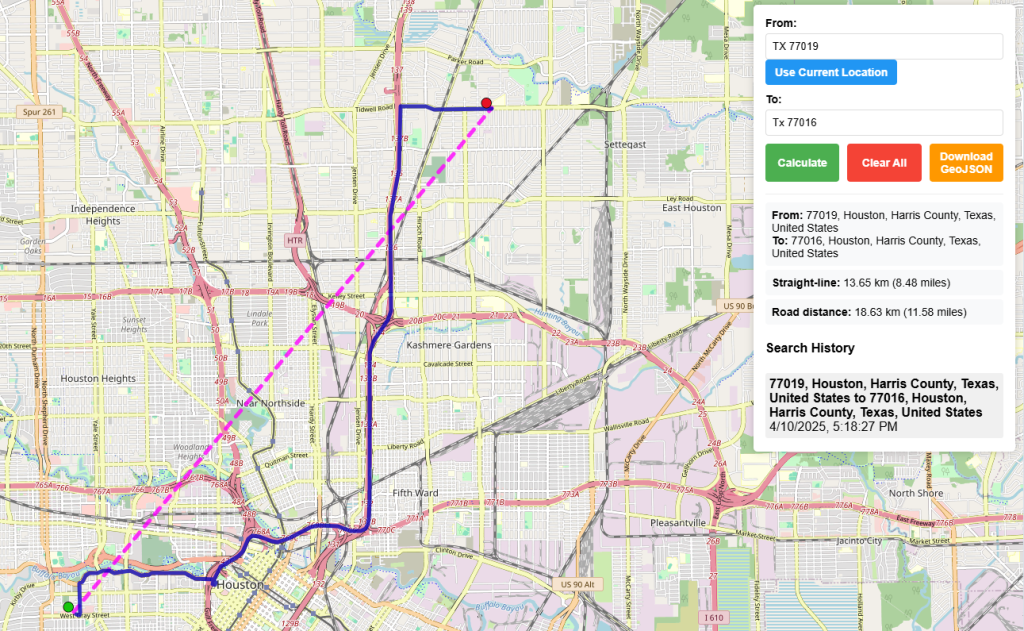
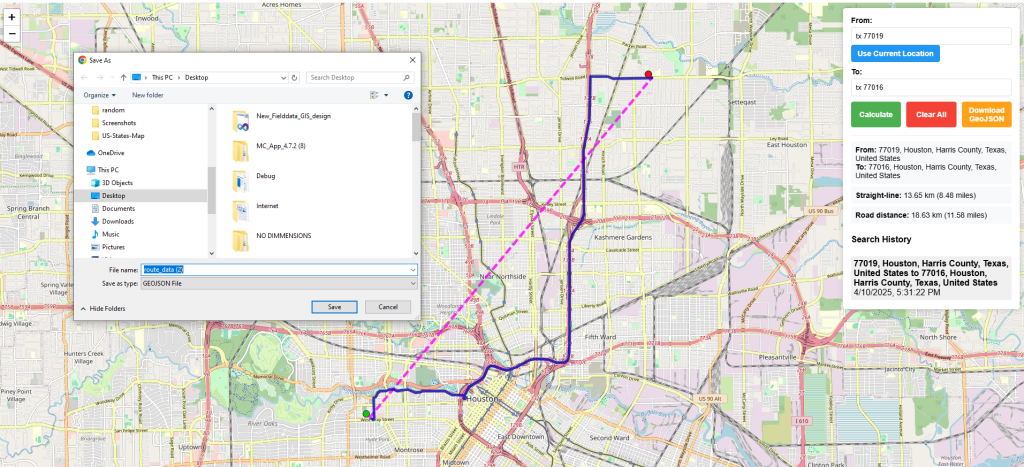
A magenta dashed line shows the direct path between the two points. A solid blue line shows the actual road route calculated by the OSRM routing engine. Both are drawn on the interactive map and can be downloaded as a GeoJSON file for further analysis in QGIS, ArcGIS, or Mapbox.
Who Uses This Tool
✓General Commuters: Measuring daily commute and aerial distance between home and office
✓Logistics Managers: Estimating delivery distance from warehouse to customer to calculate delivery time
✓Emergency Planners: Determining response distance from fire station to incident to calculate arrival time
✓Travel Planners: Calculating road trip distance between two cities for itinerary planning
✓Fleet Managers: Comparing driving vs. aerial distances to optimise delivery routes
✓Healthcare Planners: Finding distance to the nearest hospital or clinic from a given location
✓School Administrators: Planning school bus routes to minimise travel time and cost
✓Retail Analysts: Analysing store proximity to customers to assess catchment potential
✓Field Service Managers: Estimating service coverage area and travel cost from a depot
✓Real Estate Agents: Verifying proximity of properties to public transport, schools, and hospitals
✓Urban Planners: Identifying service coverage gaps and optimising infrastructure placement
✓Drone Operators: Planning drone delivery and survey flight routes between two points
Key Features
Address & Postcode Search — accepts any address, city, ZIP, or postcode worldwide
Coordinate Input — enter decimal-degree lat/lng directly in either field
GPS Location — one click to set the From field to your current position
Straight-Line Distance — Haversine formula, accurate to within metres for any distance
Road Distance — OSRM open-source routing for realistic driving distance
Dual Results — km and miles shown simultaneously for both distance types
Visual Map Lines — magenta dashed straight line and blue solid road route
Search History — last 5 searches shown as clickable chips to quickly re-run
GeoJSON Export — download both paths with distance properties for GIS use
Basemap Switcher — Street, Satellite, and Terrain base layers
Fullscreen Mode — expand to a full-browser view for easier work
Ad Display
How to Use — Step by Step
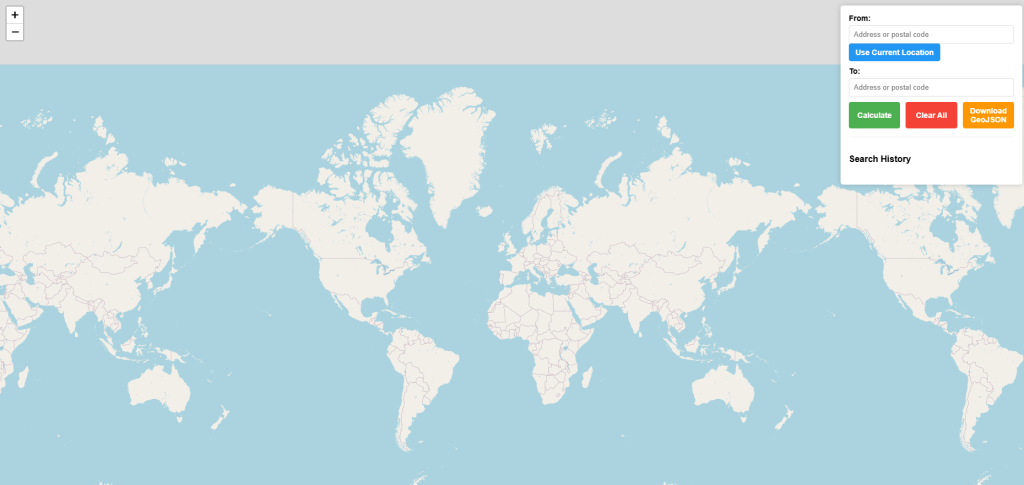
1Enter From and To Addresses
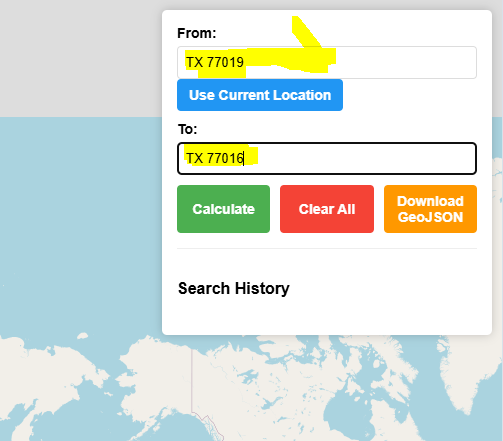
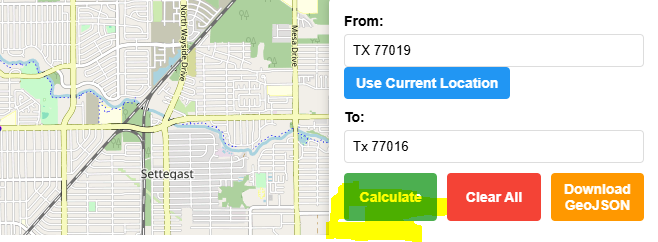
Type any street address, town, postcode or ZIP code into the From and To boxes. You can also enter decimal-degree coordinates (e.g. 51.5074, -0.1278). Press Enter or click Calculate.
2Use Your Current Location as From
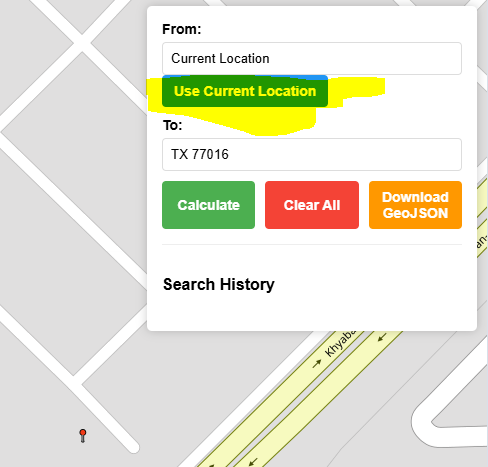
Click "📍 My Location" to automatically fill the From field with your current GPS coordinates. Your browser will ask for permission. A green marker appears on your position.
3Enter Coordinates Directly
Latitude/longitude coordinates in decimal degrees work in both fields. Format: 29.7519, -95.3677. Useful when you already know the exact geographic position of a point.
4View Both Lines on the Map
After calculating, the map shows two lines: a magenta dashed line for the straight-line (aerial) path, and a solid blue line for the actual road route. Both markers appear with popups.
5Read the Distance Results
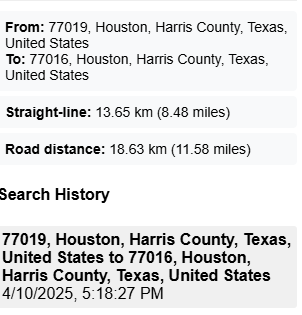
The results panel shows the full address of each location, the straight-line distance in km and miles, and the road driving distance in km and miles. Recent searches appear as clickable history chips.
6Clear All and Start Over
Click the red Clear button to remove all markers, lines, and results from the map and reset both inputs. The map returns to the global view, ready for a new calculation.
7Download as GeoJSON
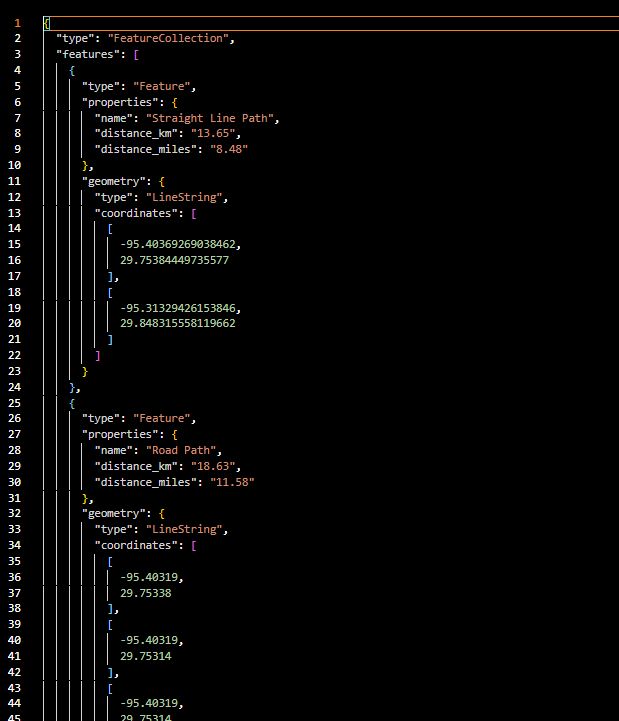
Click GeoJSON to download a standard GeoJSON FeatureCollection with two LineString features — one for the straight-line path and one for the road route — including distance properties.
8Sample GeoJSON Output
The downloaded file contains both paths with distance_km and distance_miles properties. Open it in QGIS, ArcGIS, Mapbox, Google Earth, or geojson.io for further GIS analysis.
Example — Delivery Zone Check: A courier company in Houston enters a warehouse ZIP code (77019) as From and a customer address (77016) as To. The tool shows 13.65 km straight-line and 18.63 km by road, helping the dispatcher estimate delivery time and fuel cost.
Straight-Line vs Road Distance Explained
Type
Also Known As
How Calculated
When to Use
━ ━ Straight-line
Aerial, as-the-crow-flies, geodesic
Haversine formula on WGS84 sphere
Signal coverage, coverage radius, bird migration, quick estimates
━━━ Road distance
Driving distance, route distance
OSRM shortest-path routing on OpenStreetMap road network
Delivery time, fuel cost, logistics planning, travel time
Road distance is always ≥ straight-line distance. In urban areas with good road networks the difference is typically 20–40%. In areas with rivers, mountains, or sparse roads the ratio can be much higher.
Distance Unit Reference
Unit
Symbol
Conversion
Common Use
Kilometre
km
1 km = 1,000 m
International standard, most countries
Mile
mi
1 mi = 1.60934 km
USA, UK, Liberia, Myanmar
Metre
m
1 m = 0.001 km
Short distances, engineering
Ad Display
Frequently Asked Questions
Q: How accurate is the straight-line distance?
A: The straight-line distance uses the Haversine formula on the WGS84 sphere (Earth radius 6,371 km). The error compared to a full ellipsoidal model is less than 0.5% for any two points on Earth. For all practical planning purposes this is negligible.
Q: What routing engine powers the road distance?
A: The road route uses the OSRM (Open Source Routing Machine) public demo server, which routes on the OpenStreetMap road network. It finds the shortest driving path. OSRM is the same engine used by many navigation and logistics platforms.
Q: Why is the road distance sometimes unavailable?
A: Road routing is only possible between locations that are connected by the road network. If you select two points on different islands with no road bridge, or in areas with very sparse road data in OpenStreetMap, the routing may fail. The straight-line distance is always calculated regardless.
Q: Can I enter coordinates instead of addresses?
A: Yes. Enter decimal-degree coordinates in either field in the format: latitude, longitude — for example: 51.5074, -0.1278. Both positive and negative values are accepted (negative for South/West). The geocoder will find the closest address to those coordinates.
Q: What does the GeoJSON download contain?
A: The downloaded file is a GeoJSON FeatureCollection with two LineString features. The first is the straight-line path with distance_km and distance_miles properties. The second is the full road route geometry with its distance properties. Open it in QGIS, ArcGIS, Mapbox, or geojson.io.
Q: Does the tool work with postal codes and ZIP codes?
A: Yes. The geocoding is powered by Nominatim (OpenStreetMap) which recognises addresses, city names, postcodes, and ZIP codes worldwide. For best results use the full postcode including any district prefix (e.g. SW1A 1AA for the UK, or 90210 for the US).